
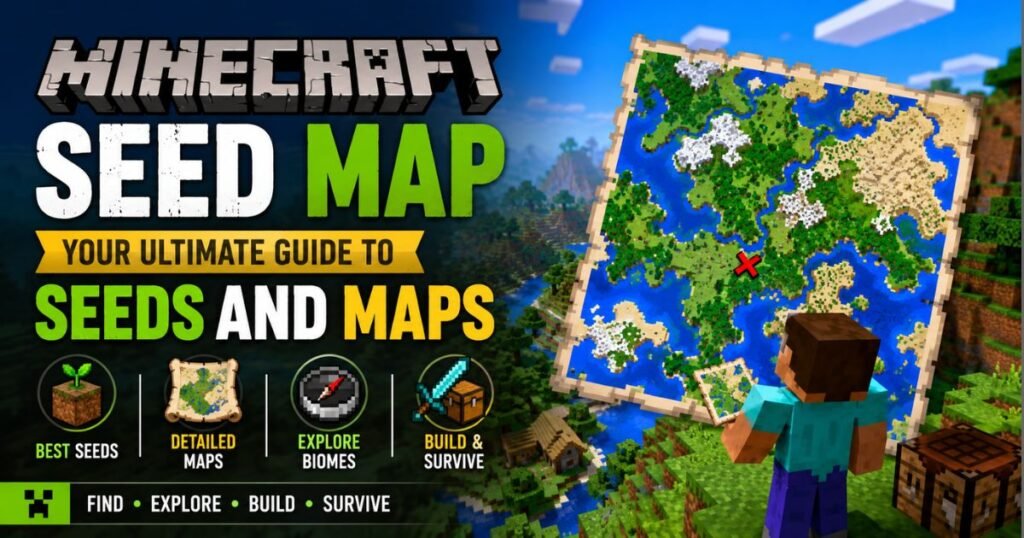
Every Minecraft world is generated from a hidden code called a seed. In simple terms, a seed is just a number (or text string) that tells Minecraft’s world-generator how to build the terrain. As the official Minecraft Wiki explains, “seeds are values made up of character(s)…that are used as the basis for generating every Minecraft world”. If you use the same seed twice (with the same game version), you will get the exact same terrain both times. For example, one blog puts it plainly: “A seed is just a number (or sometimes text) that Minecraft’s world generator uses to create your world. This number determines everything: where mountains are, caves, villages, all the structures, and biomes”.
In practical terms, you can obtain your world’s seed in-game. On Java Edition you can type /seed in the chat to display the seed, and on Bedrock Edition it is shown in the world’s settings screen. Once you have that number, you can input it into a seed map tool to see your world’s layout before you play.
How Minecraft World Generation Works
Minecraft uses deterministic algorithms (based on Perlin noise and pseudo-random number generators) to build each world from the seed. The key property is that the same seed will always produce the same world (for a given game version). The Wiki notes that “the same seed generates the same terrain every time”. In Java Edition, the game uses a linear congruential generator (LCG) for randomness: this is “fast, consistent, and good enough to generate massive, repeatable worlds”. In other words, Java’s engine takes the seed and churns out a predictable set of numbers that ultimately determine biomes, heightmaps, caves and all structures.
Notably, as one guide explains, structures in the world are also fixed by the seed. The GameIndustry article points out that the Minecraft Wiki confirms “every structure location is predictable and visible through a proper map tool” when you know the seed. In short, a seed map can calculate exactly where villages, temples, strongholds, etc. will spawn. (Remember, however, that major game updates can alter world-gen: if you load an old world with an updated version, newly generated chunks may change. The Wiki warns that “whenever the world generation algorithm is updated… the same seed no longer generates the same terrain”.)
Finally, different editions of Minecraft use slightly different algorithms. Java and Bedrock share the same biome layout for a seed, but many details differ: tree and grass placement and certain structures (like villages or caves) will be in different spots. For example, PCGamesN tested its top seeds and noted that “the biome layout should be mostly the same” in Java vs. Bedrock, but cautioned that “some structures may differ” between them. This means when using a seed map you must select the correct edition and version. Tools like SeedLander explicitly support both Java and Bedrock (handling “both editions – including Java Large Biomes”), but you’ll still see different coordinates for certain features on Bedrock.
Example Minecraft world: a player on a hill overlooking a village and mountains. A Minecraft seed map would reveal the locations of these structures and biomes from the start. In fact, one seed map guide describes their tool as “a free online tool that shows you a map of a Minecraft Java Edition world based on a seed”. In practice, the map viewer uses the seed and version to render all terrain and landmarks, letting you preview the entire landscape before you ever load a chunk.
Java vs Bedrock: Seed Compatibility
While Java Edition and Bedrock Edition use the same seed concept, they are not 100% interchangeable. The official Minecraft Wiki notes that “seeds are somewhat compatible across editions, with terrain generation and biomes being the same. However, structure locations still remain different between Java Edition and Bedrock Edition”. In other words, if you take a seed and load it in both editions, you will see the same mountains and biomes, but the villages, strongholds, and other features will not necessarily line up.
Engineers have confirmed this: Java uses a linear PRNG, whereas Bedrock uses a custom multi-threaded system optimized for consoles and mobile. In practice, toolmakers verify this behavior. For example, PCGamesN explicitly checked seeds in both editions and noted that indeed the biomes match but “some structures may differ”. Therefore, when using any seed map, be sure to select the edition (and game version) that matches your world. Many map tools (such as SeedLander and mcseedmap.net) offer an edition switch; for Bedrock your map results will closely resemble the Java map in terms of terrain, but expect villagers, temples, etc. to be in the correct (different) spots for Bedrock.
What Is a Minecraft Seed Map?
A Minecraft seed map is simply an interactive map viewer that reads your world’s seed and generates a visual map of the world’s layout. In other words, instead of exploring the world blindly, a seed map tool “shows you what your world contains” based on the seed. Technically, the tool uses the seed and chosen version to reconstruct the world’s biomes, heightmap, and structure positions. It then displays this as an overhead map you can pan, zoom, and search.
For example, the Godlike-host seed map describes itself as “a free online tool that shows you a map of a Minecraft… world based on a seed”. SeedLander (another popular tool) similarly advertises: “Every Minecraft world is generated from a seed… SeedLander reads that seed and shows you what your world contains”. In practice, these seed maps highlight exactly where villages, strongholds, nether fortresses, etc. will spawn. As the seed map FAQ notes, it can display “villages, strongholds, ocean monuments, ancient cities, … Woodland Mansions, and more” depending on the version. Most seed maps also allow toggling dimensions (Overworld, Nether, End) and feature overlays (e.g. village icons) once you enter the seed and version.
Using a seed map does not require any mods or downloads – it’s usually a website or app. You simply input your seed (or even upload a world save) and the tool “uses the seed, version, and dimension” to render the entire world. It often provides navigation controls too: for example, the Godlike map lets you “scroll your mouse wheel or use the ± buttons to zoom in and out, click and drag to pan around, or enter X/Z coordinates in the search box to jump to a specific location”. Once loaded, the seed map becomes an overhead blueprint of your Minecraft world.
Why Use a Minecraft Seed Map?
Seed maps are powerful for planning and exploration. The biggest benefit is saving time and avoiding disappointment. Instead of generating a world and then finding it boring (or worse, spawning in the middle of nowhere), you can preview it instantly. As one article puts it, a seed map “saves you from worlds that tease greatness, then turn copy-paste after a few hours” – it lets you see all key biomes and structures ahead of time, “keeping the game fresh long term”.
Using a seed map lets you choose your ideal world. Maybe you want an island start, or a jungle temple within sight, or extreme biome diversity. The seed map will show those features immediately. It also lets you share and compare worlds: when someone claims they found a “super cool” seed, a map shows the full picture instead of just a photo. (As noted, a seed map reveals the complete landscape that user found so you can judge whether it really fits your needs.)
Seed maps are also extremely helpful in multiplayer or SMP. A good multiplayer world needs room and variety for everyone. The GameIndustry guide notes that in group play “players want to spread out… some want forests, some want deserts, some will immediately try to find a stronghold”, so hosts need enough space and variety.. A seed map lets you verify this: it shows if there are enough forests, caves, villages, etc., so everyone can have a favorable spawn. In short, a seed map reveals the full context of the spawn area, turning world selection from luck into a deliberate choice.
In practice, a “fun seed” often has certain qualities. For example, one source lists key features of a good seed:
- A spawn point with multiple biome options nearby (rather than one endless plains or ocean).
- At least one structure (like a village, temple or monument) within easy reach on day one.
- Varied terrain that encourages exploration instead of flat monotony.
- Resources spread in different directions so the world doesn’t feel linear.
A seed map helps check all of these at a glance. For example, you can see how many villages lie around spawn, or whether there’s a temple just beyond the forest. You could even filter seeds by criteria (some tools or communities do this) to find worlds that meet your goals. In summary, using a Minecraft seed map turns world discovery into a streamlined process: you preview biomes and structures instantly, plan your base, and start playing in the perfect world for your style.
SeedLander: Seed Map and Tools
SeedLander is an example of an advanced seed-map toolkit. It’s a free online map viewer that reads your seed and displays the whole world. SeedLander emphasizes accuracy and features: it advertises “97% structure accuracy” and support for both Java and Bedrock editions. When you enter a seed, SeedLander shows every biome, ocean, and landmark. Its interface has many tools, including an explicit “Structure Finder” (villages, temples, strongholds, etc.), an “Ore Finder” (to predict diamond, gold, ancient debris veins), biome overlays, and even a Nether-Portal calculator.
SeedLander requires no account to use basic features. It offers a zoomable 2D map with markers for all structures that actually generate in that seed. The site also notes it has been “tested 100+ real worlds (per edition) for accuracy,” so its markers reliably match the game. Structures are listed with exact coordinates, so you can click to navigate the map or copy the coords. If you do sign up, SeedLander offers collaborative features: you can drop pins for your base, save portals, and share the map with teammates as a planning “HQ”.
In short, SeedLander is a polished seed map tool: it will say “SeedLander reads that seed and shows you what your world contains, without needing to install any mods”, and it provides specialized finders for anything you might want to locate in the world.
ChunkBase Seed Map App
ChunkBase Seed Map is a very popular web-based seed mapping tool. It’s free and browser-based, designed to work in desktop or mobile browsers. To use it, you first enter your world seed into the input box, then select the Minecraft version and dimension (Overworld, Nether or End). ChunkBase even allows you to import a local save or click “Random” to generate new seeds. Once you load a seed, the site draws the Overworld map in colored biomes and overlays structure markers. You can zoom and pan with the mouse or controls, and it automatically centers the map on X/Z coordinate (if provided).
ChunkBase’s own guide emphasizes accuracy: “the tool shows villages, strongholds, ocean monuments, ancient cities, … Woodland Mansions, and more” on the map. It also provides a coordinate search box and feature toggles. Below the map, you can even generate shareable links or screenshots of your current view. This makes it easy to send the map to friends or save it for later.
When using ChunkBase, watch out for a few common issues. The tool’s FAQ warns that you must enter the exact seed (with no extra spaces) and select the correct edition/version; otherwise the results won’t match your world. For example, if you started your world in an older game version, you should switch the seed map to that version to see the accurate terrain. Also note that ChunkBase’s map is based on biome data, so shorelines might not align perfectly with in-game terrain on 1.18+ worlds (it shows the underlying biome edges, which can slightly differ from the final block outlines). But in general, ChunkBase Seed Map is a reliable, easy-to-use tool for previewing your Minecraft world online.
MineAtlas Seed Map and Explorer
MineAtlas is another web-based seed map, focused on Java Edition (it was originally built for Minecraft 1.8). It markets itself as “a biome map of your Minecraft world seed” and also offers special searches: “It also works as a village finder, slime finder, ocean monument finder and other things finder.”. You enter a seed (or load a saved-game file) and MineAtlas generates a browser-based map showing biomes in distinct colors. It also highlights terrain features and spawn a marker for the player’s coordinates. Unlike some tools, MineAtlas gives a simple view with icons for temples, villages, forts, etc., and even slime chunks.
One limitation: MineAtlas warns that certain world types (like Large Biomes) are “not yet supported”, since it uses the older world-gen code. Also, it is geared toward Java Edition and can’t accurately model Bedrock or newer features. However, for vanilla 1.8-1.12 style worlds, MineAtlas is a quick way to visualize your seed. Its focus on biomes makes it handy if you just want to see biome borders (e.g. for building projects that span biomes). In practice, it’s more basic than ChunkBase or SeedLander, but still useful for many players.
Other Seed Map Tools
In addition to those above, there are several other seed map viewers. For example, MCSeedMap.net (by Balázs Farkas) is an actively updated web seed map and seed-finding site. It describes itself as “an online Minecraft seed map viewer and seed finder that helps you locate biomes and structures… a browseable map for a given seed with biomes, terrain estimation, and structures like Villages and Ocean Monuments.”. MCSeedMap even has its own FAQ explaining that “a Minecraft seed map is a visual representation of a Minecraft world generated using a specific seed,” letting players preview the world. It covers both Java and Bedrock, and is kept up-to-date with the latest game features (for instance, it lists Sulphur Caves and Sculk Sensors in version notes).
Other options include third-party software like Amidst (an older open-source map viewer) or seed map apps from Minecraft modding communities. On the console side, some players resort to having a friend run the seed map on PC. In general, any tool that takes a seed number and uses the official world-gen algorithm qualifies as a seed map. You can search for “Minecraft seed map” or “Minecraft seed finder” and find dozens of websites and apps; just make sure it’s maintained for your game version.
How to Use a Minecraft Seed Map
Using a seed map tool is generally straightforward. The basic steps are:
- Obtain your world seed. In-game, run
/seed(Java) or check the world options (Bedrock) to get the numeric seed value. - Open a seed map tool. Go to a web seed map (like ChunkBase or SeedLander) or launch a seed map app on your phone.
- Enter the seed. Paste your seed number (or upload the world save) into the map tool. Then select the correct game edition and version.
- Load the map. The tool will compute and display your world. This may take a moment. By default you usually start on the Overworld map.
- Navigate the map. Zoom in/out (often with mouse wheel or on-screen buttons) and click-drag to pan. Many tools let you enter coordinates to jump to any location. Toggle layer icons or biomes as needed.
- Explore features. The map should already be showing structure markers (villages, temples, etc.) and biomes. You can usually click a marker to see the X/Z coordinates. Some tools also have specialized finders (e.g. “Nearest Stronghold”) or overlays for ores.
- (Optional) Share or save. Once you have a view you like, generate a shareable link or screenshot if the tool allows. Some sites let you sign in and bookmark or pin locations for planning.
In practice, different tools have slightly different interfaces, but all follow this core flow. For example, Godlike’s seed map lists these steps: “1. Paste your Minecraft seed. 2. Pick your edition & version. 3. See structures, biomes & ores (villages, strongholds, monuments, etc.)”. ChunkBase likewise directs you to enter the seed, version, and dimension, and then it renders the map. The important thing is to always ensure your seed and version match your world; if not, the map won’t line up.
Locating Structures and Biomes with Seed Maps
Once the map is loaded, you can easily spot all major structures and biomes in your world. Seed maps highlight the exact locations of every structure that the seed generates. For example, the Godlike seed map’s FAQ notes it shows “villages, strongholds, ocean monuments, ancient cities… Ruined portals, mansions, and more”. This means you can immediately find, say, the closest village or nearby temple on the map. You can plan to spawn near villages, or head straight to a monument for loot.
Some tools even provide dedicated structure finders. For instance, SeedLander has a “Structure Finder” menu: it “will track down the spots that matter in your world — villages, strongholds, ancient cities, fortresses…” using your seed. Using such a finder returns the nearest copy of that structure type with coordinates, which you can then jump to on the map.
Biomes are also clearly visible. If you want a certain biome combination (like desert beside jungle, or a mushroom island), you’ll see it on the color-coded biome layer. Most maps also let you click on the terrain to see exactly which biome or biome variant is at each point.
By using the seed map interface and its search features, you can plan your exploration route. For example, if you see a stronghold 2000 blocks east, you can start heading that way knowing exactly where to dig down. Or if a village is shown to the north at (X, Z) = (300, -500), you can build your base there to get trading early. In short, a Minecraft seed map turns the world’s generation data into a guidebook of where everything is.
Finding Ores and Special Features
Beyond structures, many seed map tools provide ways to locate hidden resources and special features. One common example is an ore finder. SeedLander, for instance, includes an Ore Finder that predicts veins of diamonds, ancient debris, emeralds, gold, copper, and other ores. By calculating the ore distribution from the seed, it can tell you at which coordinates rich ore pockets will appear (which is invaluable for mining).
Similarly, if you need to link Nether and Overworld portals, some tools offer a portal calculator. SeedLander explicitly lists a Nether Portal tool: “Work out the matching Overworld / Nether coordinate pair for a portal”. This lets you align portals precisely instead of guessing or doing math.
Some maps also locate slime chunks or biome-specific features. Others can show litteral spawn points, although be aware these predictions can sometimes be off (especially on Bedrock). Overall, think of the seed map as a Swiss Army knife: in addition to an interactive map, it often has one-click finders for the things players most commonly search for (villages, ores, etc.).
Popular Minecraft Seeds and Examples
Using seed maps, players have cataloged many famous seeds. For illustration, consider a couple of examples:
Example Seed (“Flower Forest Island”): PCGamesN’s seed list highlights “Flower Forest Island” (seed 2048005618087379093). In this world you spawn on an island biome covered in flower forest, surrounded by water and cherry groves (see image above). A seed map instantly reveals this scene: the map would show the small island, its biomes, and the encircling lake before you even start. Instead of discovering it by luck, you could scan the seed on ChunkBase or SeedLander and know exactly what you’re getting.
Example Seed (“Pillagers and Villagers”): Another well-known seed is 8110137054462309706, nicknamed “Pillagers and Villagers”. In this seed, the spawn area includes a savanna village just east of you and a pillager outpost (with a ruined portal) to the south. As PCGamesN describes, you find “a handy savanna village… and a pillager outpost and ruined portal” nearby. A seed map would highlight both locations immediately. For instance, on the map you’d see a village icon at (≈ x, y) and the outpost icon just a few blocks away. This lets you decide: do you start by raiding the pillagers for early loot, or trade with the village first? Either way, the seed map has given you that strategic preview.
These examples show how seed maps make it easy to find rare landscapes or convenient spawns. Hundreds of other community-shared seeds can be explored similarly. (If you have a favorite seed number, just paste it into one of the seed map sites above and see what it yields!)
Sharing and Saving Your Seed Maps
Once you have a seed map with a layout you like, you’ll often want to share or save it. Most seed map tools include a way to generate a link or image of the map view. For example, the Godlike seed map FAQ explicitly notes that “the tool lets you generate shareable deep links and screenshots of the map”. ChunkBase also provides an easy way to copy a URL that encodes the seed and view, so you can send it to friends or on forums. Taking a screenshot of the map (or embedding one in a chat) is another common approach.
Some tools go further by letting you create accounts or save maps for future editing. As mentioned, SeedLander allows users to save their seed-map as a project. It turns the seed map into a collaborative hub: you can “drop pins on every base, save your portal pairs (even nether fortresses!), and watch the activity feed update” across your team. In other words, teammates can log in and see each other’s pinned locations and notes on the map in real time. This is especially handy for group play or streaming teams: everyone can mark where they built something or where ores have been found.
In short, sharing your seed map means your friends or co-players can import the same seed and get identical maps. You can use chat links, screenshots, or built-in sharing to coordinate. For example, if you find a world with great structures, you can drop all the pins and send the link so others can jump right into any point of interest you’ve discovered.
Multiplayer and SMP Uses
Seed maps are particularly valuable for servers or multiplayer worlds (SMP). When multiple players start in one world, you want to ensure the spawn location fairly supports everyone. Before seed maps, people sometimes saved countless worlds until one looked good by chance. Now, with a seed map, you can verify that the spawn has ample biomes and resources for all players. You can even identify multiple safe spots near spawn in different directions.
For example, say two players want to start together. A seed map might show two nearby villages or ample forest and plains biomes on either side of spawn, so each player can pick a direction. Or, on a large SMP server, the admin might use a seed map to ensure that unique biomes (like a jungle or mesa) appear near spawn for everyone to explore. Essentially, seed maps turn world selection into a team strategy. They can also be fun for speedruns or challenges: players share a seed and jump into a perfectly understood world from the outset.
In summary, on multiplayer servers a seed map helps with coordination, fairness, and planning – just like on single-player, but on a larger scale. Players can split up and conquer knowing where everything is located.
Accuracy and Limitations
Minecraft seed maps are generally very accurate for major features, but they have some limitations. Biomes and large structures are almost always in the right place. The Godlike seed map’s FAQ claims “biomes are very accurate” and that structure positions are “accurate to within a few blocks”. In practice you can trust that villages, pyramids, fortresses, etc. will appear basically where the map shows them. This is because these algorithms are deterministic and well-understood by map tools.
However, seed maps do not show absolutely everything. Many minor or underground features are omitted. For example, the ChunkBase FAQ bluntly says that “many features are not 100% accurate” – notably dungeons (underground monster rooms) and certain Bedrock-exclusive structures (like End City ships in Bedrock) are not displayed. Likewise, mcseedmap warns that “some structures may be missing” on the map, and even mentions that “there may be some structures that are not generated in the game” (meaning the map might erroneously indicate something that the game didn’t actually create). Spawn points also can be tricky: the predicted player spawn on the map is sometimes off by hundreds of blocks, especially in Bedrock version worlds. In short, trust the map for “natural” features (biomes, villages, temples, fortresses) but verify uncertain ones in-game.
Another limitation is version mismatch. If you load your world in an updated version, any new chunks will be generated differently, so the map and game won’t align. Always select the same world version in the map tool that you used to create your world. Also be aware of special world types: maps might not handle Customized, Flat, or Large Biomes settings perfectly. For example, MineAtlas explicitly states that Large Biomes are not supported, and ChunkBase warns that 1.18+ jaw updates can cause coastline misalignment.
Finally, seed maps only work for vanilla generation. Any mod or data pack that changes world-gen will break the map’s accuracy. The ChunkBase FAQ cautions that if you used add-ons or mods that alter generation, the seed map will not match. In practice, use seed maps on unmodded or purely biome-altering packs only.
Despite these caveats, for normal worlds a seed map’s predictions for villages, temples, nether fortresses, ancient cities, etc. are very reliable. It will get you to the right neighborhoods, if not always the exact foot.
Troubleshooting Minecraft Seed Maps
If a seed map isn’t matching your world, check these common issues:
- Exact Seed and Spacing: Make sure you entered the seed exactly as given, with no extra spaces or typos. Even a trailing space or wrong digit will change the result.
- Correct Edition/Version: Verify that the tool is set to the correct Minecraft edition (Java or Bedrock) and game version. ChunkBase, for instance, notes that if your world was created in an older version you must switch to that version in the map, or else the terrain won’t line up. A mismatch in version or edition is the most common cause of maps not matching.
- Unsupported World-Type: Ensure your world type is supported. As noted, large biomes or customized world settings may not render correctly. If you used a “Large Biomes” world or tweaked the generator, the map may not match.
- Mods or Data Packs: If you used mods or data packs that change world generation (biomes, structures, etc.), the vanilla seed map will not reflect those changes. The same seed in a modded world will not look like the vanilla map.
- Coastline and Terrain Differences: Accept that minor terrain offsets can occur. Maps often show biome boundaries rather than the exact shore, so expect some mismatch along riverbanks or coastlines (especially on Minecraft 1.18 and later).
- Reload or Different Tool: If things still seem off, try the map again or use a different seed map tool. There can be rare bugs in any map site.
In practice, carefully verifying the seed and version fixes almost all problems. Once these align, you should see the same biomes and structures in-game as on the map.
Minecraft Seed Maps for Modded Worlds
Standard seed maps only work for unmodified world-gen. If you are playing with mods or data packs that change how the world is created, the vanilla seed will no longer predict the world correctly. In fact, the ChunkBase FAQ warns: “If none of the above helped, one of the following might be the cause: … you used an add-on or mod that changes world generation.”. In other words, tools like SeedLander or ChunkBase assume vanilla biomes and structures. If your world has, say, Biomes O’Plenty, TerraForged, or any custom structure packs, those features won’t show on the map and terrain will be wrong.
Currently there are few (if any) widely used seed maps for modded worlds, because modded generation can be arbitrarily complex. The best approach is to use vanilla maps for vanilla content or find mod-specific viewers made for the particular modpack (rare). For most players, seed maps are mainly a vanilla tool. Just remember: mods = likely bad fit for standard seed maps.
Minecraft Seed Map Apps for Mobile
You don’t have to use a desktop browser to preview seeds – there are mobile apps too. On Android, for instance, the “Seed & Chunk Map” app is a native seed map viewer. It advertises itself as “the most advanced, fast, and modern interactive map viewer built natively for Android”. According to its description, it lets you “instantly preview any world seed right from your phone, [and] find every structure, biome, and rare resource in seconds!”. The app explicitly supports both Java and Bedrock editions (up to the latest version) and includes features like a Structure Locator (finding villages, temples, mansions, fortresses, etc. on your seed) and a biome finder.
On iOS, there are similar apps (though fewer). Some map tools also have mobile-friendly websites that work in the phone’s browser. Overall, mobile seed maps offer much of the same functionality as desktop versions – just optimized for touch. This means you can check a seed before buying it on console, or share screenshots on social media. If you play Minecraft Pocket or on consoles and still want seed previews, try one of the seed map apps or a mobile-friendly site. They will typically ask you to enter the seed and version just like on PC.
Frequently Asked Questions
Q: What is a Minecraft seed map?
A Minecraft seed map is an interactive map viewer that uses your world’s seed to display the generated world layout. Instead of exploring in-game to find villages, temples, or biomes, a seed map shows you exactly where those features will be. In short, it’s a visual blueprint of your world generated from the seed, so you can plan and preview the terrain before playing.
Q: How do I find my Minecraft world seed?
On Java Edition, open the chat and type /seed – the game will display the seed number for your current world. On Bedrock Edition (Windows 10, consoles, mobile), the seed is shown in the world’s settings or game options screen before you load the world. Copy that seed number (including any minus sign) and paste it into a seed map tool.
Q: How do I use a Minecraft seed map?
First, get your world seed as above. Then visit a seed map website or open a seed map app. Paste the seed into the input box and select the correct edition (Java or Bedrock) and game version. The tool will render your world’s map. You can then zoom and scroll around, click on structure icons to get coordinates, or use search boxes to jump to specific X/Z points. In short: obtain seed → open map tool → paste seed and version → explore the generated map of your world.
Q: Are Minecraft seed maps cheating?
Using a seed map is generally considered a matter of play style. The maps are essentially planning tools. As the Godlike seed map FAQ puts it: “Using a seed map is simply a planning tool. How you use it is entirely your choice.”. It’s not illegal or against the game rules – it’s like looking up a world generator preview. Some players like the challenge of exploration without help, while others prefer to use seed maps to optimize their start. Neither approach is “wrong”, so it’s up to you how you want to play.
Q: Do Minecraft seed maps work on Bedrock Edition?
Some do, yes – but only if the map tool explicitly supports Bedrock. Minecraft’s bedrock version uses the same seed concept, but remember structures generate differently. Many seed map websites and apps have an option to switch to Bedrock Edition mode (SeedLander and apps like “Seed & Chunk Map” support both). When in Bedrock mode, the map will show the correct terrain layout for Bedrock. Keep in mind that while biomes will match, village locations or fortress positions may not line up with Java. Always select the Bedrock edition in the tool if you want an accurate map for that edition.
Q: How accurate are Minecraft seed maps?
For major features, they are very accurate. Seed maps can show biomes and most structures to within a few blocks of where they generate in-game. You can trust where it marks a village or temple – it will be essentially right. However, seed maps won’t show everything. Small features like underground dungeons, bedrock-specific structures, or spawn points might be missing or slightly off. Maps also note that spawn position predictions can be wrong in some cases. In practice, use the map for planning large-scale routes and major landmarks, and then verify in the game once you get there.
Q: Can I use a seed map on console or mobile?
Yes. Many seed map sites work in a console’s web browser, and there are dedicated mobile apps. For example, the Android app “Seed & Chunk Map” lets you “preview any world seed right from your phone”. Other mobile apps (iOS and Android) offer similar features. Essentially, the process is the same: enter the seed and version in the app, and it will display the map. This means console players can still benefit by using their phone or an in-game web view to load a seed map before playing.
Q: Are Minecraft seed maps safe?
Seed map websites are safe in general, but be cautious of unofficial clones. The mcseedmap site warns that many copycat sites appear, some of which may host malware. To stay safe, use well-known tools (like those mentioned above) and avoid any site that seems sketchy. You do not need to install anything; you only need to input your seed. As always, only use seed maps from reputable sources or links on the official Minecraft forum and avoid untrusted advertisements.
Conclusion
A Minecraft seed map is a powerful way to explore your world before you even break a block. By turning your world seed into a full overhead map, these tools let you preview biomes, villages, temples, fortresses, and ore veins instantly. We’ve covered how seeds work, why seed maps are useful, and which tools to use for Java and Bedrock. Seed maps save you time and help you find the ideal starting location. For your next Minecraft world, give a seed map a try – paste in a seed and see your world at a glance. Then grab your pickaxe and start playing with a plan!
Explore the maps and share your experiences. You might also check our other Minecraft guides on biomes and structures to complement what you see on the seed map. Happy building and exploring!
